
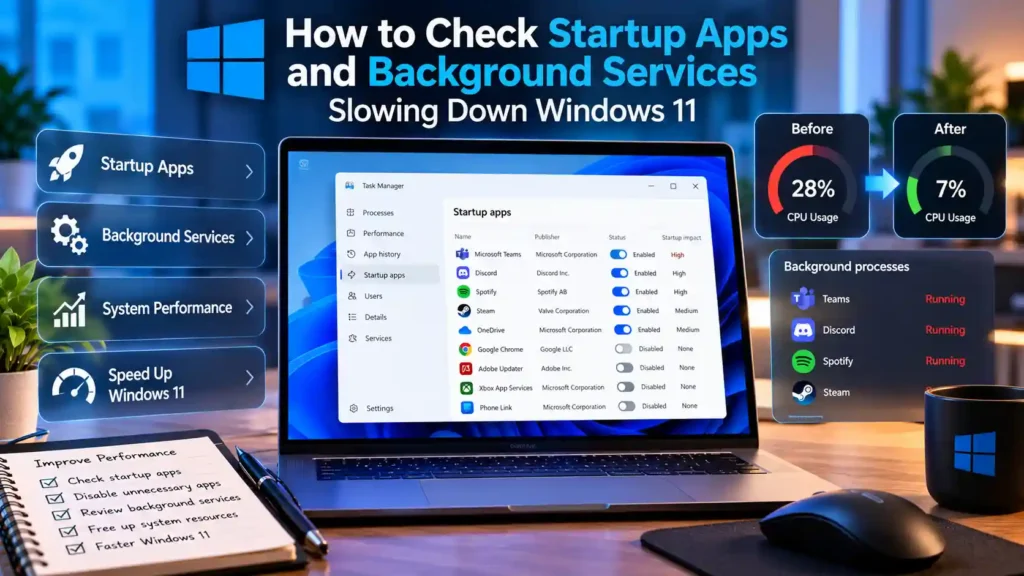
When a Windows 11 PC takes longer to boot or uses excessive RAM immediately after signing in, third-party updaters, game launchers, and peripheral utilities running at startup are usually the cause. You can reclaim system resources safely without installing third-party “PC cleaner” software.
Prerequisites
- Windows 11 (any supported edition: Home, Pro, Enterprise, or Education).
- Standard user account for per-user startup apps; Administrator privileges if modifying system-wide services.
Step 1: Disable High-Impact Startup Apps in Task Manager
- Press Ctrl + Shift + Esc to open Task Manager.
- Click Startup apps in the left navigation rail (the speedometer icon).
- Click the Startup impact column header to sort applications from High to Low.
- Right-click any non-essential application (such as chat apps, cloud sync clients you do not use, or launcher helpers) and select Disable.
Expected result: The status changes to Disabled, and the application will no longer launch automatically the next time you sign in.
Step 2: Inspect Hidden Scheduled Tasks With Sysinternals Autoruns
Some applications bypass the standard Startup folder by registering a Windows Scheduled Task or a background service. To inspect every auto-starting component:
- Download Sysinternals Autoruns from Microsoft Learn.
- Extract the archive, right-click
Autoruns64.exe, and choose Run as administrator. - Open Options → Hide Microsoft Entries so you only see third-party software.
- Review the Logon and Scheduled Tasks tabs and uncheck unneeded third-party updaters.
What Not to Disable
Never disable entries belonging to your audio driver, touchpad/chipset driver, Windows Security (
SecurityHealthSystray.exe), or encryption software.