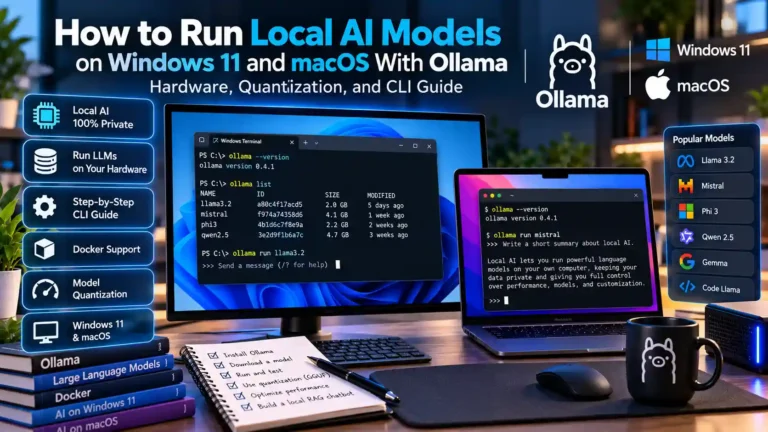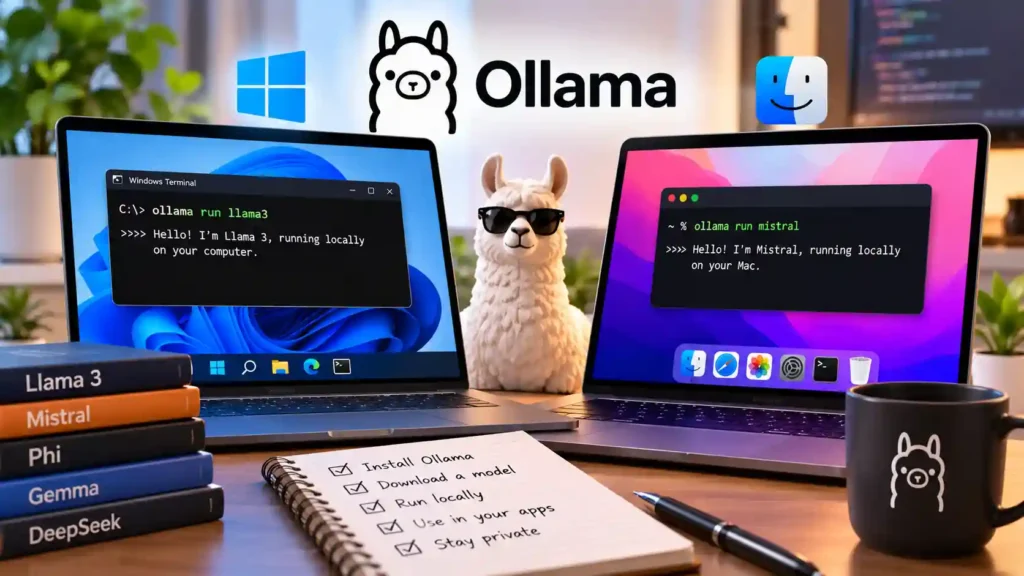
Running large language models (LLMs) locally on your own computer lets you draft code, summarize documents, and test API workflows without sending sensitive data to third-party cloud servers or paying per-token API fees.
Hardware Prerequisites: RAM and GPU VRAM Requirements
Before downloading a local model, check your system memory and graphics card specifications. Quantized 4-bit models require roughly the following memory footprint:
| Model Parameter Size | Minimum System RAM / VRAM | Recommended Use Case |
|---|---|---|
| 3B – 4B Parameters (4-bit quantization) | 4 GB – 6 GB | Fast summarization, basic text formatting on laptops without a dedicated GPU |
| 7B – 8B Parameters (4-bit quantization) | 8 GB – 10 GB | Everyday coding assistance, drafting, and local RAG workflows |
| 14B – 32B Parameters (4-bit quantization) | 16 GB – 24 GB+ | Complex reasoning, multi-file code refactoring, and structured JSON extraction |
Step 1: Install Ollama on Windows or macOS
- Visit the official Ollama download page and download the installer for Windows or macOS.
- Run the installer and verify the installation by opening PowerShell (Windows) or Terminal (macOS) and running:
ollama --versionStep 2: Pull and Run Your First Local Model
Use the ollama run command to download and start an interactive chat session in your terminal:
ollama run llama3.2To list all models currently stored on your drive or remove a model to free up disk space, use:
ollama list
ollama rm llama3.2
Step 3: Connect Local Models to Your Editor or Local API
By default, Ollama runs a local HTTP server on http://localhost:11434 that is compatible with the OpenAI Chat Completions format, allowing you to connect local code editors or scripts without an internet connection.
Limitations to Keep in Mind
- Context window memory growth: Increasing the context length from 4,096 tokens to 32,768 tokens significantly increases RAM/VRAM consumption.
- CPU vs. GPU speed: If a model exceeds your GPU’s dedicated VRAM, inference falls back to system RAM and CPU, reducing token generation speed.